Dingly for Foodics (coming soon)
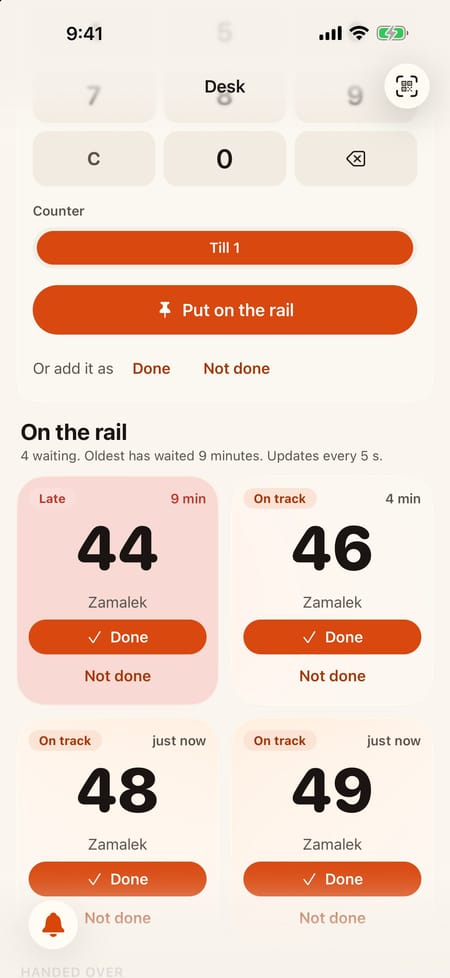
If your till is Foodics, Dingly works next to it without anything to install on the Foodics iPad. You connect your Foodics account from Sites in Dingly and pick the branch. Every new Foodics order, except delivery, then goes on the Dingly pager rail by itself. Guests type the number Foodics prints on their receipt, and when the kitchen screen marks the order done, their phone turns green.
Coming soon. Dingly for Foodics is waiting for Foodics' app review, so you can't connect a Foodics account in Dingly yet. This page describes how it works once it's approved. Write to hello@dingly.win to hear when it's live.
In short: Dingly is the digital customer experience platform for restaurants and cafés, made in Cairo, in English and Arabic. With Foodics it adds the order pager on the guest's phone, the guest page with menu, Wi‑Fi and feedback, the stamp card, and table ordering on the Dingly desk. You keep ringing up, taking payment and printing receipts in Foodics.
- What the till leaves to you
- Connect Foodics
- Orders on the rail
- Menu, options and tables
- What you control
- Honest limits
- Related guides
- Questions
What the till leaves to you
Foodics rings up the order, sends it to the kitchen screen and prints the receipt. What it doesn't do is tell the guest at the counter that their order is ready. Without that, guests hover at the pickup point or ask the cashier, and staff call numbers out loud. Foodics also has no documented way for outside apps to add buttons or screens to the Foodics Cashier app, so Dingly connects through your Foodics account instead and runs its desk beside the till.
Connect Foodics
An owner or manager does this once per site, in Dingly on the web.
- Open Sites, pick the site and open the Foodics tab.
- Choose Connect Foodics and sign in to Foodics as the account owner.
- Approve Dingly. Foodics asks once, then sends you straight back to Dingly, which shows “Foodics is connected”.
- Pick the branch this site follows. If your Foodics business has several branches and you run several Dingly sites, pin each site to its own branch.
A Foodics account can be connected to one Dingly shop only. The Foodics tab then shows when the last order arrived, and tells you if an order didn't make the rail.
Orders on the rail
- Every new order goes on the rail. Every new Foodics order, except delivery, appears on the Dingly desk rail by itself. Delivery orders never do.
- Guests type the Foodics number. They tap or scan the counter tag and type the order number from their Foodics receipt. Foodics numbers can repeat; if two open orders share a number, the page asks for the check number from the receipt, so nobody follows someone else's order.
- The kitchen screen marks it ready. When the order is bumped on the Foodics kitchen screen, it is marked done in Dingly and the guest's phone turns green. Staff can also tap Done on the Dingly desk.
- A void closes it. A voided, returned or declined order leaves the rail as Not done. If the ready alert hasn't gone out yet, it is skipped.
- Stamps come along. An order marked done this way counts on the guest's stamp card, as on the Dingly desk.
Menu, options and tables
Under Menu and tables from Foodics, Dingly reads the pinned branch's products, options, sections and tables, so the guest menu and the table cards match the till. Pick the site's branch first.
- Choose Link existing dishes and tables, which matches what you already have by name, or Link, and create what's missing, which also adds the rest.
- Run Preview first. Nothing changes until you choose Import.
- Check two or three dishes with options against a printed Foodics receipt: price, options and tax.
Linked dishes take this branch's Foodics price. If Foodics adds tax at the till, the Dingly menu shows prices before tax, and Dingly tells you to say so on your menu or switch Foodics to tax-inclusive pricing. A new dish for a product switched off in Foodics comes in switched off; out-of-stock items are only reported, and the sold-out switch stays with your staff. Products sold by weight and combos aren't imported. Run the import again after you change the menu in Foodics.
With tables imported, print the table cards from Dingly (see QR codes and NFC tags) and turn on table ordering. Table orders come to the Dingly desk, where staff accept or decline them and enter them in Foodics as they would any order. Guests pay staff or at the till as usual.
What you control
- Put every new Foodics order on the rail. On by default. Turn it off if you have fewer pagers than orders: an order then joins the rail only when the guest types its number.
- The branch. One branch per site, or all branches when you run one site.
- Disconnect Foodics. Orders already on the rail stay. Also remove Dingly from Foodics Console > Marketplace.
Honest limits
- Availability. If the Foodics tab says Foodics isn't available yet, Dingly is still finishing the Foodics app review. Write to hello@dingly.win to hear when your account can connect.
- Table orders don't go into Foodics by themselves. They stay on the Dingly desk, and staff enter them at the till. Sending them straight into Foodics isn't available.
- The rail lives in Dingly. It can't be shown inside Foodics. Staff watch it in the Dingly app, on a counter tablet or in any browser.
- If a bump doesn't turn the phone green, staff tap Done on the Dingly desk. Keep the desk in view during the first days.
- One name per dish. Dingly keeps one name per dish, so Arabic names from Foodics aren't brought over. Edit them in Dingly if you need them.
- Setup is on the web. Connecting and importing happen in Dingly on the web; the Dingly app doesn't have a Foodics screen yet.
Related guides
- Odoo 18 Point of Sale and Foodics, side by side.
- How the phone pager works for your guests.
- Order-ready notifications: the green page, App Clip push and the Lock Screen.
- Table ordering and calling the waiter.
Questions
Do I need to install anything on the Foodics iPad?
No. You connect your Foodics account from Sites in Dingly. Orders reach Dingly from Foodics itself, and the Foodics Cashier app stays as it is.
Do Foodics delivery orders go on the rail?
No. Delivery orders stay out; every other new Foodics order goes on the rail by itself.
Which number does the guest type?
The order number Foodics already prints on the receipt. If two open orders share that number, the page asks for the check number, which is unique per order.
Can table orders go straight to the Foodics till?
Not yet. Table orders come to the Dingly desk, where staff accept them and enter them in Foodics. You can still import your Foodics menu, options and tables so the guest menu matches the till.
I have several Foodics branches. How do I set them up?
Create one Dingly site per branch, connect Foodics on each, and pin each site to its branch. Each site then has its own rail, tags, tables and menu.
Does Dingly replace Foodics?
No. You keep ringing up, taking payment and printing receipts in Foodics. Dingly adds the pager, the guest page, the stamp card and table ordering.
Running Foodics? Set up your shop, or write to hello@dingly.win in English or Arabic and we'll help you connect.