Three steps. No hardware to buy.
The receipt you already print does the work a buzzer used to do.
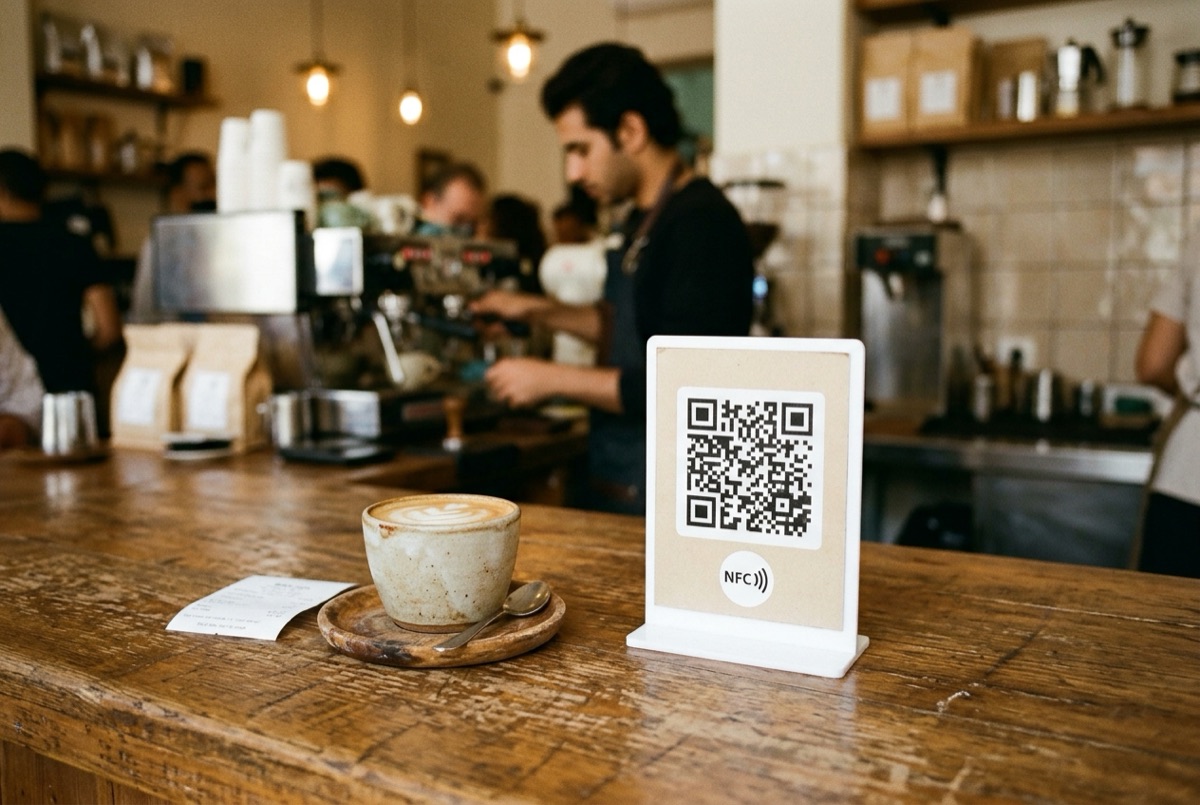
Stick one tag on each counter
A QR code with an NFC sticker behind it. It never changes, so you print it once.
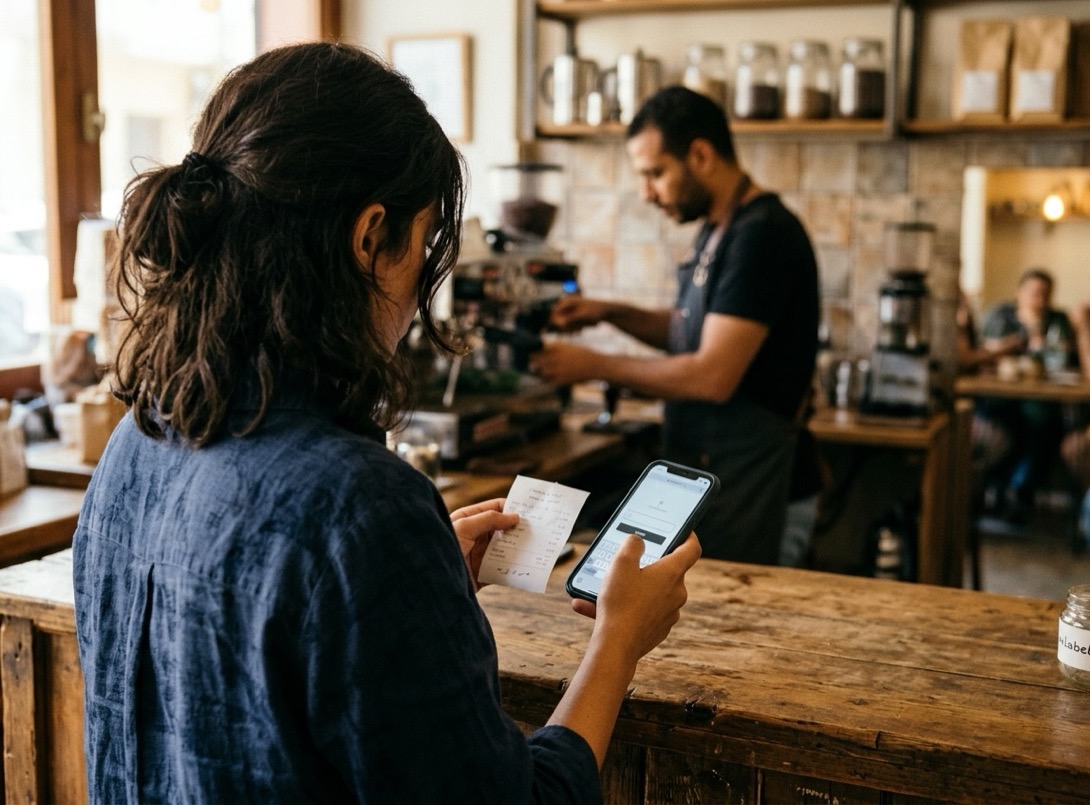
Guests type their receipt number
The number comes from Odoo, the Dingly app or the web desk. Each phone follows only its own order.
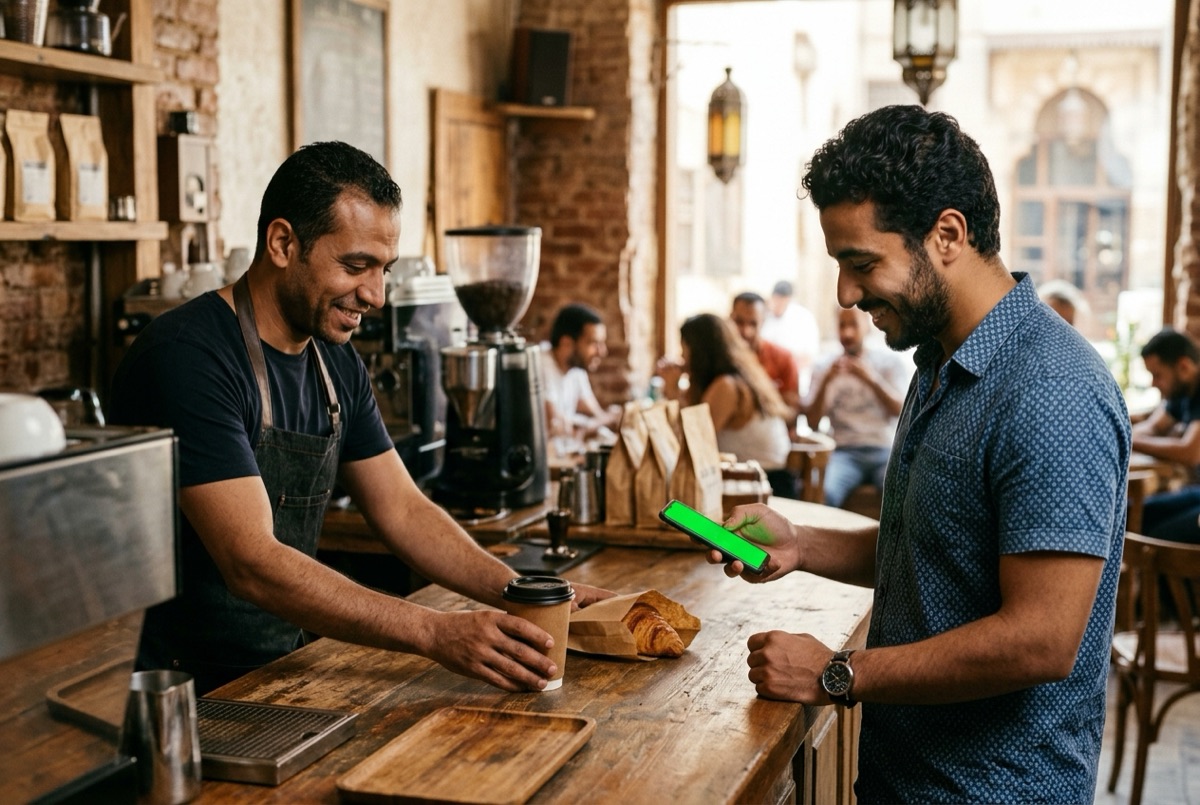
Tap Done
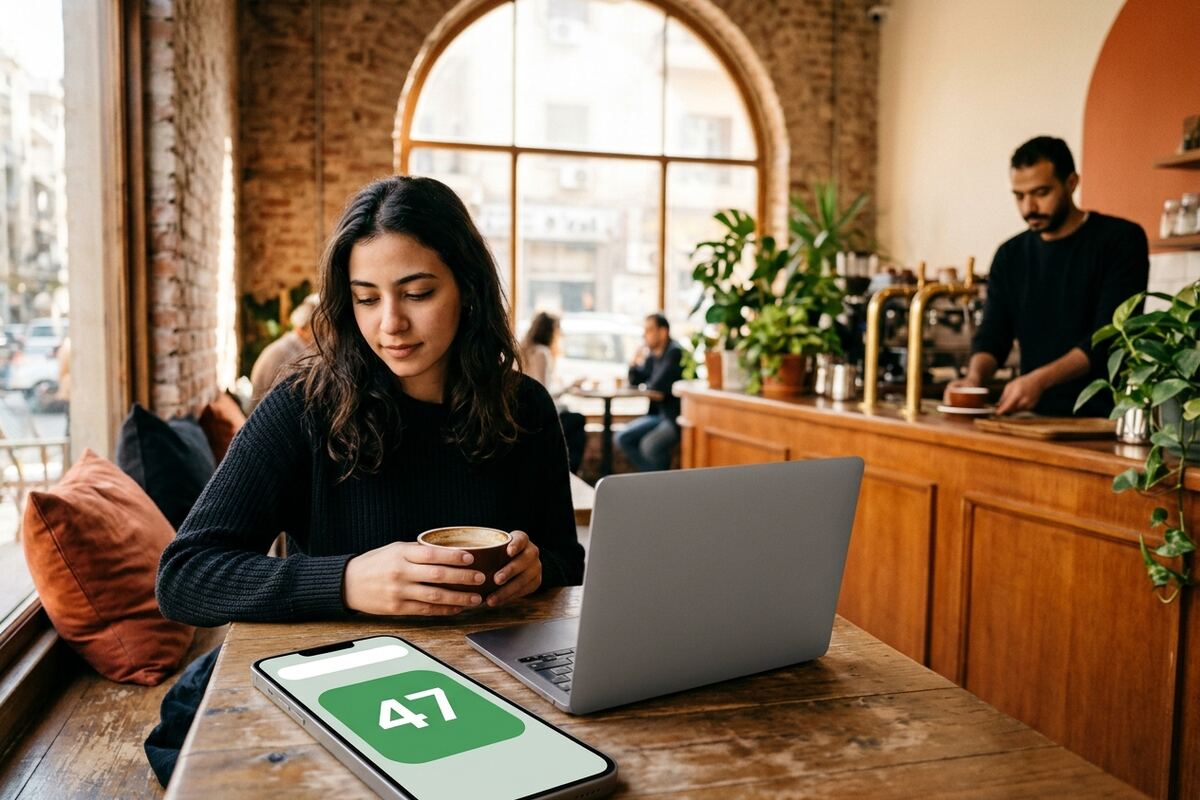
The guest's phone turns green and alerts them, wherever they are in the room.
“Ready” finds the guest, wherever their phone is.
Guests don't download anything. The tag opens an App Clip on iPhone and a web page on every other phone, and each one hears about it the moment you tap Done.
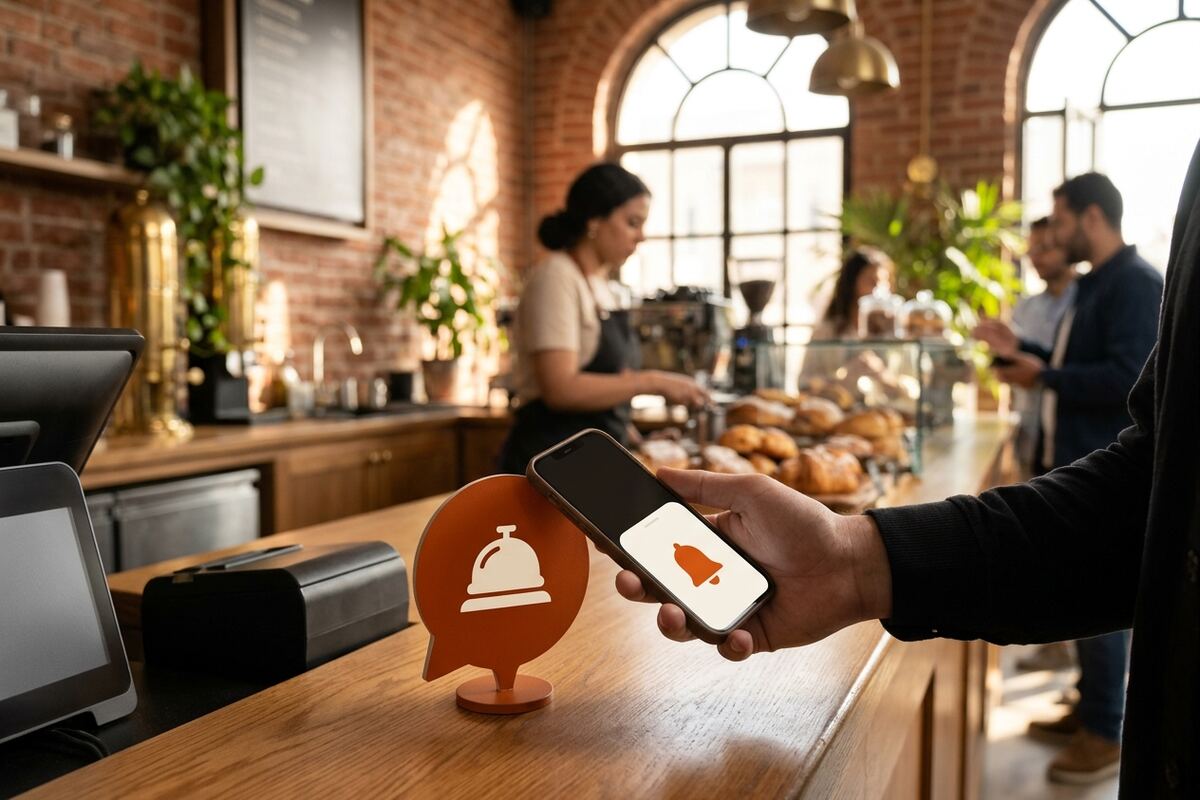
Tap the tag, nothing to install
On iPhone the tag opens the Dingly App Clip, a small native version of your shop page. On Android and everywhere else, the same page opens in the browser.
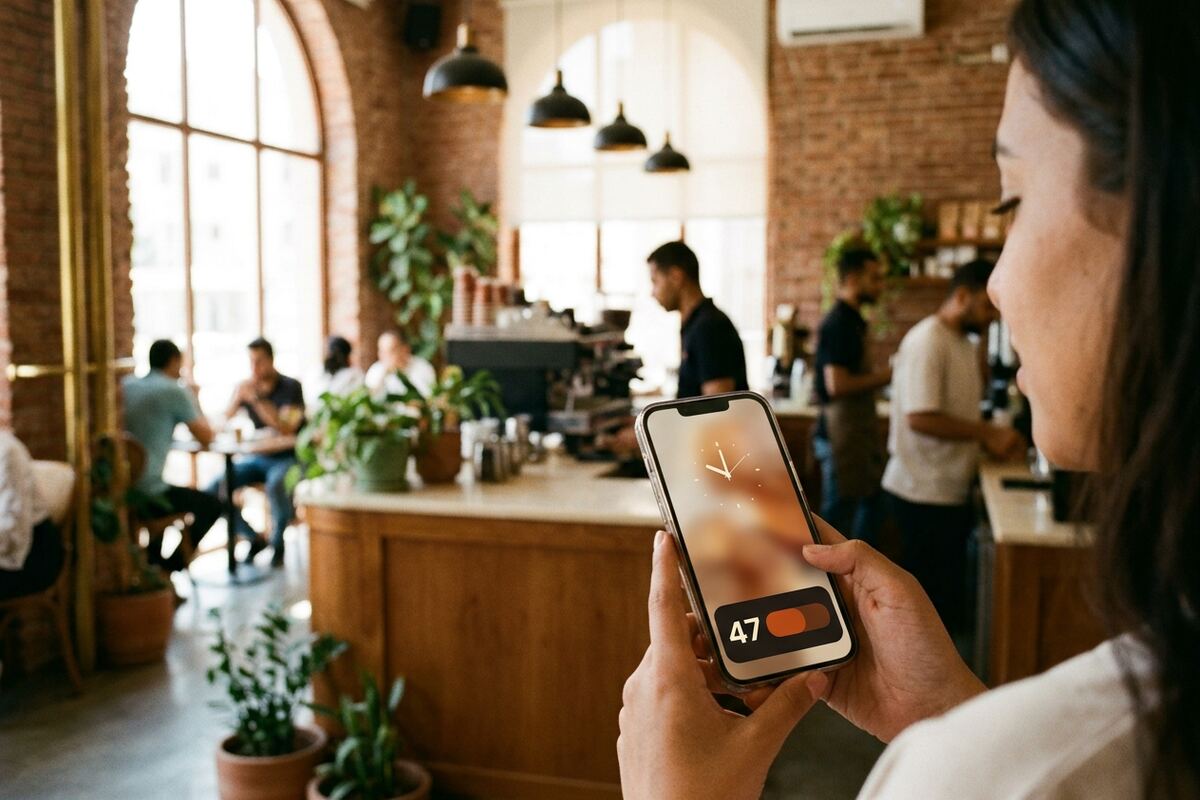
On the Lock Screen until pickup
From the App Clip, the order sits on the Lock Screen and in the Dynamic Island. Only the ready update makes a sound, so nobody is buzzed while they wait.
A push, in their language
Guests who have the Dingly app tap “Notify me when it's ready”. The alert arrives even with the app closed, in the language they use, and tapping it opens the order.
- The page still turns green. Every guest page flips to green with “47 is ready”, in any browser. Browsers that allow notifications get one too.
- Your shop, not a generic app. The clip shows your name, cover photo and stamp card. One clip serves every Dingly shop, because the tag picks the shop.
- No name needed. Guests follow an order with nothing but the number on their receipt.
- One alert, then gone. The phone's push token is kept only until the ready alert is delivered, then deleted.
The whole counter, in your pocket.
The Dingly app runs your desk, your guest list, your numbers and your shop setup from one phone. It looks at home on each platform: Liquid Glass on iOS 26, Material on Android.
In English and Arabic, with full right-to-left layout and Western digits.
Coming soon to the App Store and Google Play

- Desk
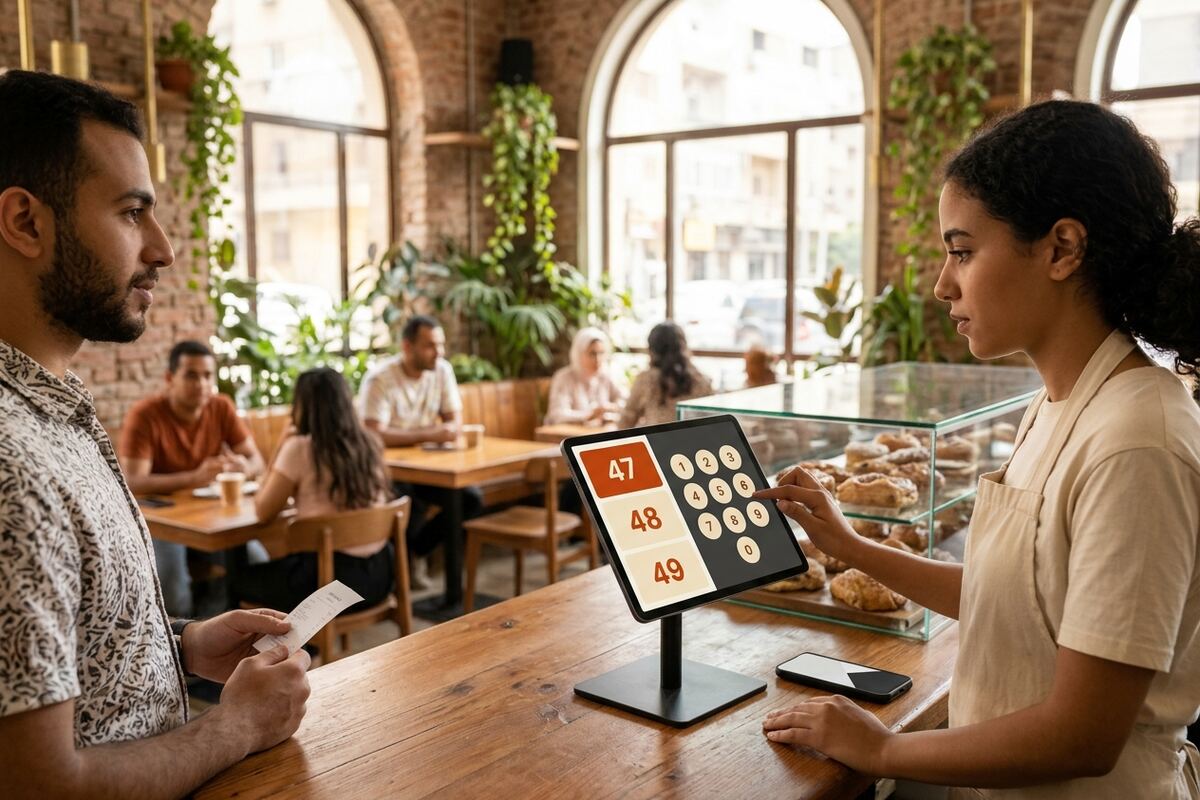
- Put a receipt number on the rail and mark it ready, with five seconds to undo a wrong tap. Scan the QR on a guest's card to add a stamp or redeem a reward.
- Customers
- Search your guests, filter by segment, see visits, stamps and rewards, and export the list to CSV.
- Insights
- Orders per day, your busiest hours, stamp card use and feedback, in clear charts, for one site or all of them.
- Shop
- Sites, QR and NFC tags, menus (import one from a photo), Wi‑Fi, the guest page, the feedback inbox, your loyalty card and how it looks in the wallet, automations and campaigns, your team and counter-tablet codes, and your plan status.
- Account
- Change your password, email or language, turn alerts on or off, or delete your account.
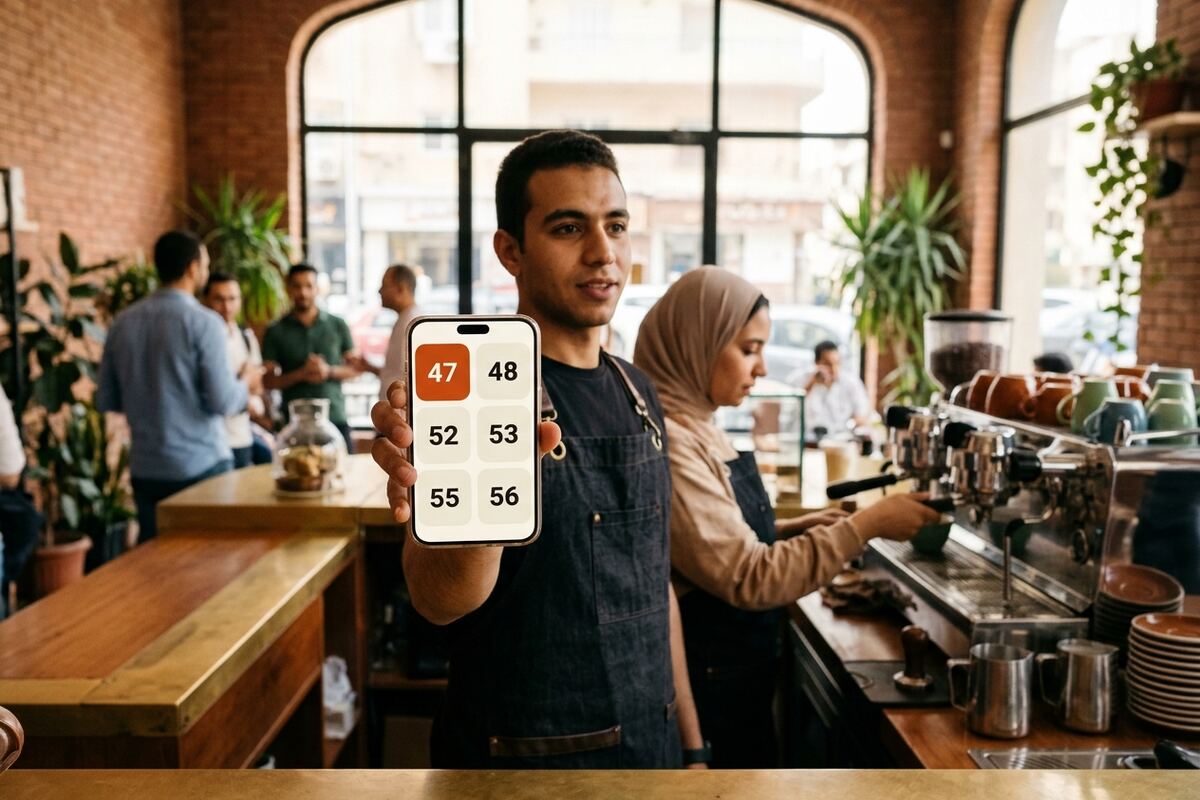
Every open order hangs on one rail.
On the phone, a counter tablet or any browser. Late ones turn amber. Odoo orders hang on the same rail.
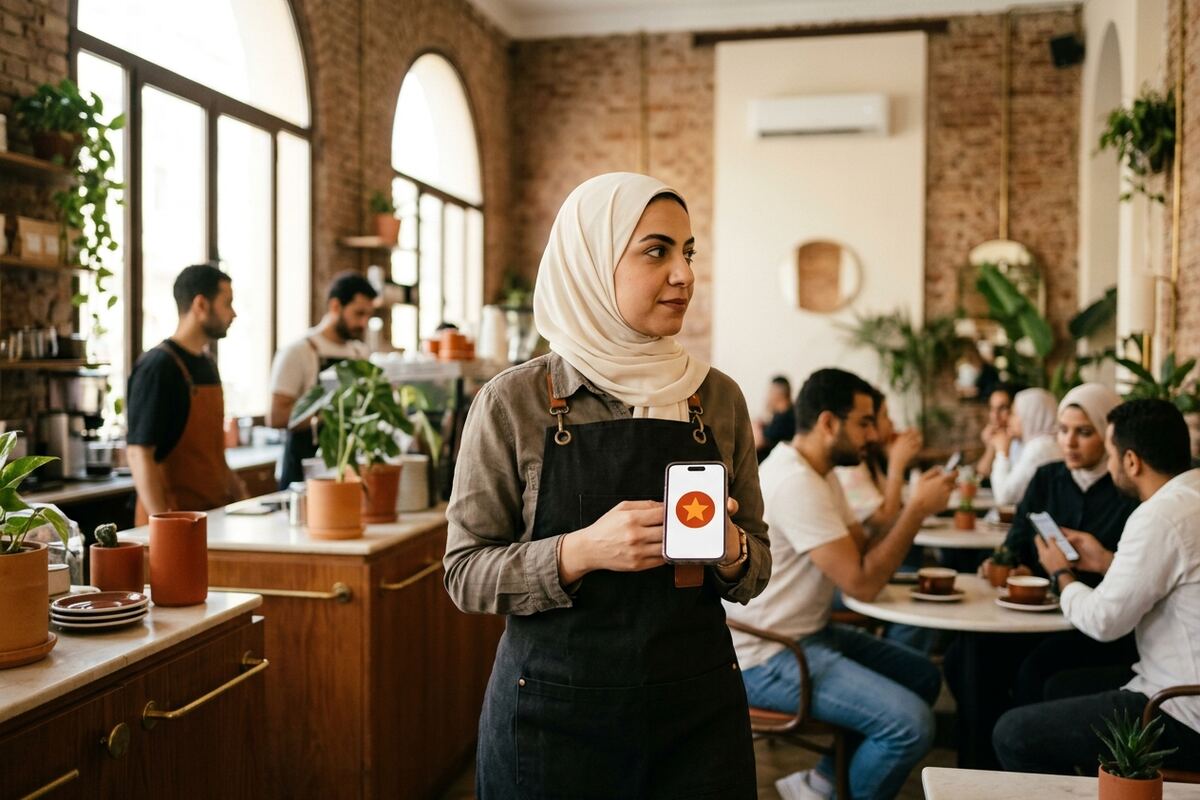
Your phone speaks up when something needs you.
Owners and managers can turn on alerts in the Dingly app. Each person picks their own, and they arrive in that person's language.
- A low rating, or a guest who wants to talk. Three stars or fewer, or a request to be contacted, sends an alert. The comment and contact details never appear in it, because lock screens are public. Read them in the feedback inbox.
- An order waiting too long. When an order has waited 8 minutes, the alert names the number and the site. Once per order.
- Off until you turn it on. Choose your alerts in Account. A manager who leaves the team stops getting them at once.
While they wait, the tag opens your whole shop.
One page per venue, in your colors. Guests open it in the browser, or as an App Clip on iPhone.
Your menu, with diet filters
Prices, photos, allergen and diet tags. Guests filter for what they can eat and rate the dishes they tried.
Wi-Fi without asking the cashier
Guests copy the password or scan a Wi‑Fi QR code. Or ask for an email first and grow your list.
Reviews that go to the right place
Happy guests get a nudge to your Google review page. Unhappy ones reach you privately first, so you can make it right.
Something to do while they wait
A small puzzle to play, plus your links and social accounts.
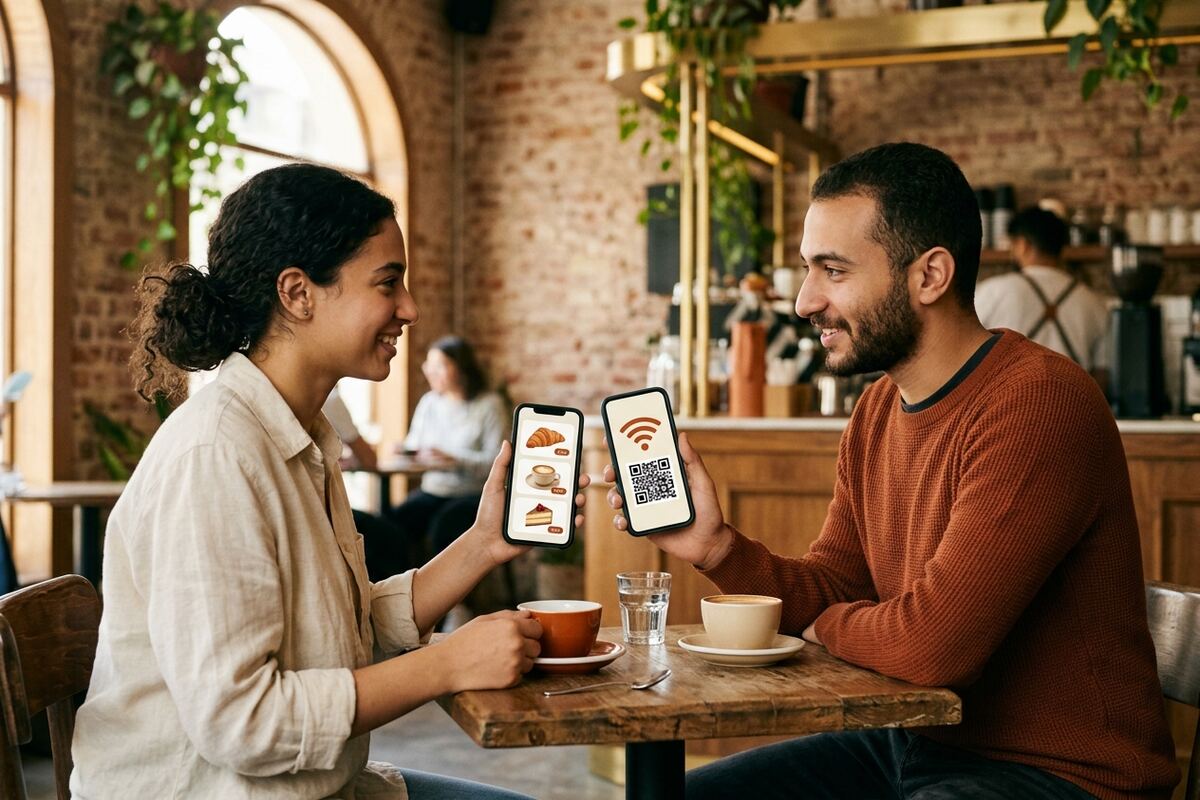
A stamp card nobody can lose.
The guest's phone number is the card. It lives in Apple Wallet or Google Wallet and fills up by itself.
- A stamp with every order. It lands when the cashier taps Done. Forgot to save the number? A phone saved up to 30 minutes later still counts.
- Scan to stamp or redeem. In the app, the cashier scans the QR on the guest's card, or types a 6-character reward code, to add a stamp or hand over a reward.
- One card for all your branches. The same number fills the same card at every site you run.
- Your goal, your reward. Pick how many stamps it takes, what the reward is, and whether it expires. Preview the wallet card before guests see it.
- The card updates itself. New stamps and earned rewards show up in the wallet, and the guest gets an email when a reward is ready.
- Mistakes are easy to fix. Cashiers can add or undo a stamp, and every change stays in the guest's history.
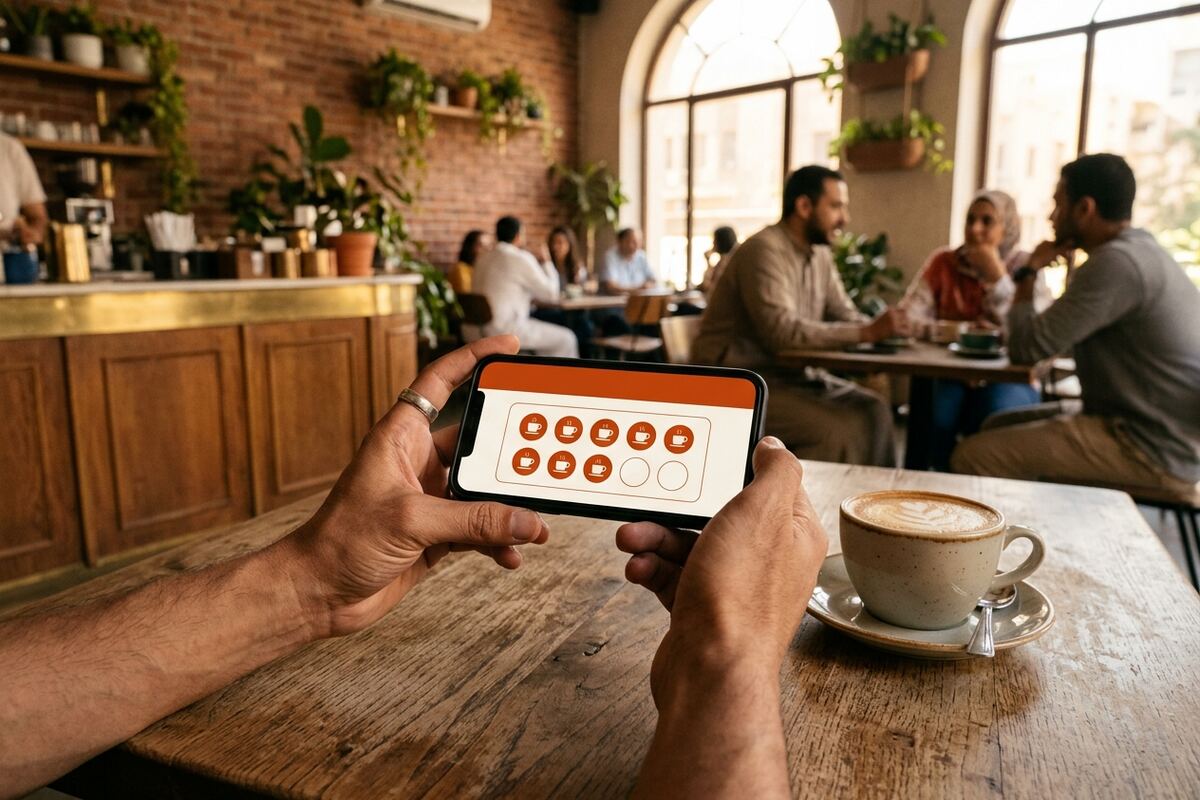
Know who comes back, and bring back who doesn't.
Every tap leaves a guest record you own. Read it on your phone after closing.

- Customers
- Search, segment and export your guest list. Export or delete a guest's data on request.
- Insights
- Orders, ready times, your busiest hours, stamps and rewards, Wi‑Fi leads, email sign-ups and ratings.
- Automations
- Welcome, birthday, win-back and review-request emails that send themselves, in English or Arabic.
- Campaigns
- One-off emails to a segment. They reach only guests who confirmed their email, and every email has a one-click unsubscribe.
- Sites
- Run several branches, each with its own tags, menu, Wi-Fi and feedback inbox.
- Team
- Invite managers and cashiers, and create sign-in codes for counter tablets.
Already on Odoo? Keep ringing up there.
Install the Dingly module in Odoo 18 Point of Sale. Each order you ring up gets its number on the receipt and a slip on the rail. Marking it done in Odoo turns the guest's phone green.
Private by design.
Your guests trust you with their number. We keep it that way.
- No ads, no tracking. No advertising and no third-party analytics or tracking tools on the website, the guest pages or the apps.
- Encrypted in transit. Every connection to Dingly uses HTTPS. Passwords and cashier codes are stored only as one-way hashes.
- Guest data belongs to your shop. Each shop's guest list is kept separate and never shared. Export or delete any guest from Customers.
- Leave whenever you like. Delete your account from the app, under Account, in a few taps.
Questions owners ask
Do my guests need the app?
No. The tag opens a web page in any browser. On iPhone it can open as an App Clip, which needs no install either. Guests who already have the Dingly app can get a push when the order is ready and keep their stamp cards in one place.
Does it work on Android?
Yes. Guests tap the tag (with NFC on) or scan its QR code, and the page turns green in their browser. The Dingly app for Android is coming soon to Google Play; until then the desk runs in any browser.
What do staff get on their phones?
The desk, your customers, insights and shop setup, in the Dingly app. Owners and managers can turn on alerts for low ratings or contact requests and for orders waiting more than 8 minutes. Each person chooses their own. Cashiers on counter tablets sign in with a 6-digit code.
Is there a fee per message?
You choose a plan on the website when you set up your shop, and plans differ by how many sites and pagers you run. To know exactly what a plan includes, write to hello@dingly.win.
How do I pay?
Plans are paid yearly by card on the website, through Paymob. The app shows your plan and its end date. We never charge your card automatically.
How do I delete my data?
In the Dingly app, go to Account, then Delete account, and confirm with your password. Export your guest list from Customers first if you want to keep it. A guest who wants their data exported or deleted can ask you, and you can do it from Customers in one step. See the Privacy Policy for details.
What do I need at the counter?
A printed tag with an NFC sticker, and a phone, tablet or any device with a browser for the desk. If you use Odoo, the receipt printer you already have.
Can I use my own colors?
Yes. The guest page and the wallet card take your shop's color. Order status colors stay the same everywhere, so green always means ready.
Is Dingly new?
Yes. Dingly has just launched and we're welcoming our first venues now. Founding venues work directly with the people who build it, so what you tell us shapes what we build next.

Print one tag. Retire the buzzers.
Newly launched, and welcoming our first venues. Become a founding venue.