QR codes and NFC tags for restaurants
In Dingly, a tag is a printed card with a QR code and an NFC sticker that holds one link. Put one on each counter and guests use it to follow their order. Put one on each table and guests use it to order and call the waiter. Scanning the QR code and tapping the NFC sticker open the same page, so every phone has a way in. This guide covers what each tag opens, how to make them, where to put them and how to test them.
About Foodics: the Foodics connection mentioned on this page is coming soon; we're finishing Foodics' app review. Everything else here works today.
In short: Dingly is the digital customer experience platform for restaurants and cafés, made in Cairo, in English and Arabic. You get the links from Sites in Dingly; any printer and any NFC sticker will do. The tag never changes when you edit your menu, colors or features, so you print it once.
- What a restaurant tag has to do
- Counter tags and table tags
- Making the tags
- Placing and testing them
- Honest limits
- Related guides
- Questions
What a restaurant tag has to do
A guest at the counter wants one thing from a tag: to reach their order in a few seconds, without asking anyone. A guest at a table wants the menu for that table and a way to reach staff. A QR code works with any phone camera. An NFC sticker is faster on phones that read NFC: the guest holds the phone to the tag and the page opens. Putting both on one card means nobody is left out, and if one fails the other still works.
Counter tags and table tags
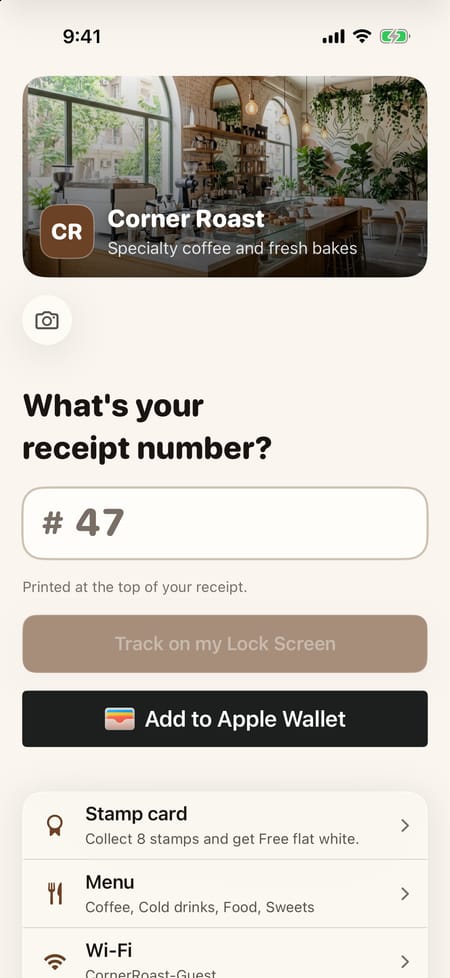
Both kinds open your shop's own page, in your colors, with your menu, Wi‑Fi, feedback and stamp card. What changes is what the page already knows.
| Counter tag | Table tag | |
|---|---|---|
| Where it goes | Where guests pay or wait, one per counter | On each table, one per table |
| What the page knows | The site, and the counter if it's a counter's own tag | The site and the table: “Table 7”, or a name like “Terrace 2” |
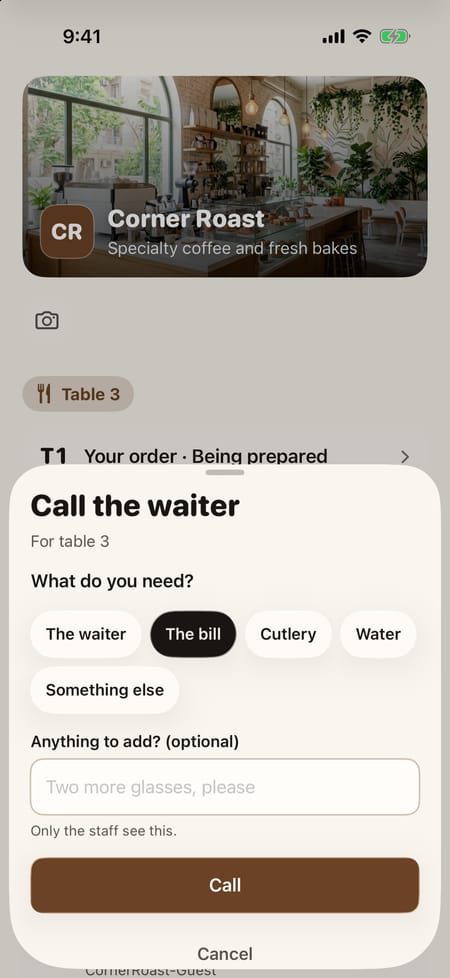
| What the guest does | Types the receipt number and follows the order | Orders from the menu and follows the order, or calls the waiter |
| What has to be on | “Pager / order strip” under Features, which is on for a new site | “Order from the table” or “Call the waiter” under Features |
Every site has one tag for the whole site, which works at any counter. Creating a counter gives that counter its own tag, so the desk knows which counter an order is waiting at. Give each cashier their own when you run more than one till.
On iPhone, the tag can open the Dingly App Clip: a small native version of your shop page that needs no install. One App Clip serves every Dingly shop, because the tag picks the shop. On Android and everywhere else, the same page opens in the browser. How the guest then hears that the order is ready is in order-ready notifications.
Making the tags
Counter tags. In Dingly, open Sites, pick the site and open Tags.
- Use “One tag for the whole site”, or type a label such as “Front counter” and choose Create counter.
- Copy the tag link. In the Dingly app on iPhone, each tag also has its QR code, which you can share as an image to print.
- Print the QR code on a card, and write the same link to an NFC sticker with any NFC writer app. Stick the sticker behind the card.
Table tags. In Sites, open Tables.
- Add tables one by one, numbered in one go, or from a list of names. A site can have up to 200 tables.
- Choose Print table cards: A4, six cards a page, cut along the dashed lines. Each card says what the tag does, for example “Scan or tap to order from your table”.
- To write an NFC sticker, choose Write NFC tag on a table and hold the sticker to the back of the phone. This works in Chrome on Android; elsewhere, copy the table link into any NFC writer app.
- Turn on “Order from the table” or “Call the waiter” under Features. Until one of them is on, guests can't use table links.
Placing and testing them
- Put the counter tag where guests stand. Next to the till or the pickup point, flat and within reach, so a guest can hold a phone to it while paying.
- Keep NFC stickers off metal. A sticker placed on metal, or a damaged one, may not read. Put it on wood, plastic or card.
- Test both ways with your own phone. Tap the tag, then scan the QR code. Both should open your page. Hold the top edge of the phone flat against the tag for a second or two; on Android, NFC must be on in Settings.
- If the QR works but tapping doesn't, replace the NFC sticker. If neither works, check that your shop is approved and your plan is active under Plan & billing in the app.
- Changing things doesn't mean reprinting. Editing the look, menu or features keeps the same link. Old stickers with /c/ links keep working. Deleting a table stops its link; a table that already has orders or calls is switched off instead.
Honest limits
- NFC isn't on every phone. Some phones don't read NFC, or have it switched off. That is why every tag carries a QR code too.
- Guests need a connection. The page loads over the internet. Without mobile signal or guest Wi‑Fi, the tag can't help.
- Dingly doesn't sell tags. You print the cards and buy NFC stickers yourself. Dingly gives you the links, the QR codes and the table cards to print.
- A table tag is only as good as the switches. With table ordering and calling the waiter both off, the table card leads nowhere useful.
Related guides
- The restaurant pager on the guest's phone: what happens after the counter tag.
- Table ordering and calling the waiter: what happens after the table tag.
- Order-ready notifications in the browser, the App Clip and the app.
- Odoo and Foodics: printing table QR cards from Odoo, and importing tables from Foodics.
Questions
Do I need a QR code and an NFC tag, or just one?
Both, on the same card. They hold the same link. NFC is quicker on phones that read it, and the QR code works with any camera, so every guest has a way in.
Do guests need an app to use the tag?
No. The tag opens a web page in any browser. On iPhone it can open the Dingly App Clip, which needs no install either.
How many tags do I need?
One per counter where guests pay or wait, and one per table if you use table ordering or calling the waiter. A single site tag works at any counter; separate counter tags tell the desk where each order is waiting.
Do I have to reprint tags when I change my menu or prices?
No. The link stays the same when you change the menu, colors or features, so the printed QR code and NFC sticker keep working.
The QR code works but tapping doesn't. What's wrong?
The NFC sticker may be damaged or placed on metal. Replace it, and check that the guest's phone has NFC turned on.
Can I write NFC tags from my phone?
Yes. On a table in Sites, Write NFC tag works in Chrome on Android. On other phones, copy the link into any NFC writer app.
Ready to print your first tag? Set up your shop, or write to hello@dingly.win in English or Arabic.