Order-ready notifications on every phone
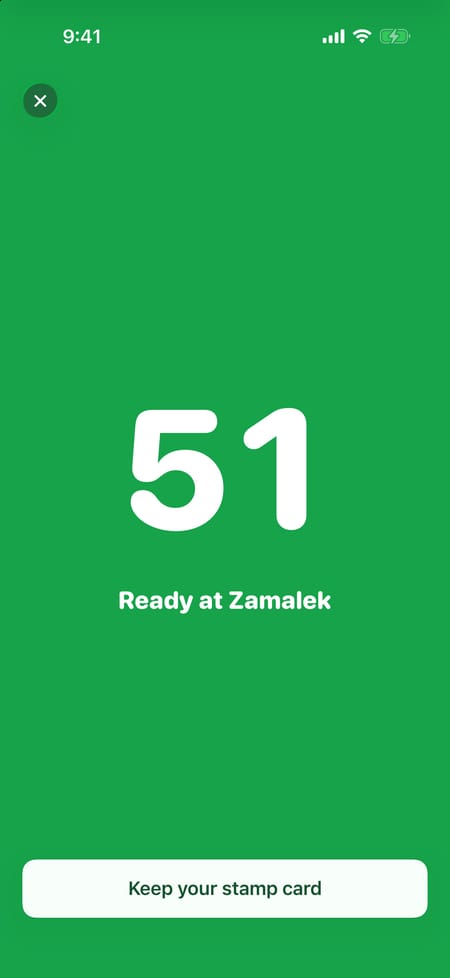
When staff tap Done in Dingly, every guest following that order hears about it on their own phone. The order page turns green in any browser. Browsers that allow notifications get one too. On iPhone, the Dingly App Clip sends a push and can keep the order on the Lock Screen, and guests with the Dingly app get a push there.
About Foodics: the Foodics connection mentioned on this page is coming soon; we're finishing Foodics' app review. Everything else here works today.
In short: Dingly is the digital customer experience platform for restaurants and cafés, made in Cairo, in English and Arabic. Guests follow an order with nothing but the number on their receipt. The open page always turns green when the order is ready; a push arrives only when the guest allows notifications; the push token is deleted once the alert is delivered.
- Why guests miss their order
- How the guest hears “ready”
- From Done to the guest's phone
- Alerts for your team
- What happens to push tokens
- Honest limits
- Related guides
- Questions
Why guests miss their order
A guest who can't see their order tends to hover at the counter or ask the cashier. A number called out loud gets lost in a busy room. Coaster buzzers solve part of this, but they have to be handed out, charged and collected. A notification on the guest's own phone reaches them wherever they wait, as long as the phone is online.
How the guest hears “ready”
The guest taps the counter tag or scans its QR code and types the receipt number. Which channel then carries the alert depends on the phone and on what the guest allows.
| Channel | Where | What the guest does | What they get |
|---|---|---|---|
| The order page | Any browser, any phone | Nothing more | The open page turns green and reads “47 is ready” |
| Browser notification | Browsers that allow web push | Taps “Turn on alerts” and allows them | A notification, even with the screen locked |
| App Clip push | iPhone, when the tag opens the App Clip | Allows notifications | A push in the guest's language; tapping it opens the order |
| Lock Screen | iPhone App Clip | Taps “Track on my Lock Screen” | The order on the Lock Screen and in the Dynamic Island until it's ready |
| Dingly app push | Guests who have the Dingly app on iPhone | Taps “Notify me when it's ready” | A push with the shop name, order number and branch |
On iPhone, Safari sends web notifications only to pages added to the Home Screen, so the page offers that step. A browser built into another app can't send alerts; there the page offers to open in Safari or Chrome. When a browser can't send alerts at all, the page asks the guest to keep it open, and it sounds the alert itself.
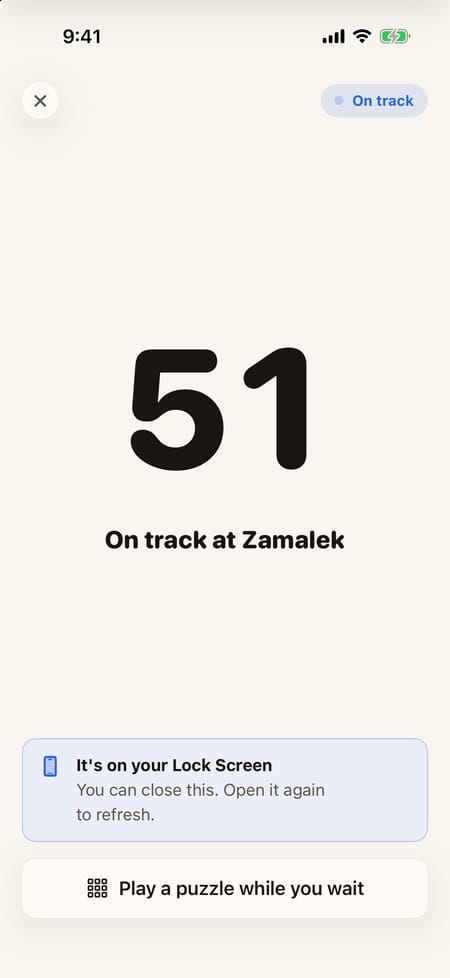
From Done to the guest's phone
- The order goes on the rail. Staff type the receipt number on the Dingly desk, or the order arrives from Odoo or Foodics.
- Staff tap Done. There are five seconds to undo a wrong tap. With Odoo, the cashier taps Done at the register; with Foodics, the kitchen screen can mark it done.
- Every channel fires once. The page turns green, and each push the guest allowed goes out. Each channel checks the order again just before it sends, so an order closed in the meantime doesn't alert anyone.
- Table orders say more. A table order also alerts the guest when staff accept it, so they know it's being made.
Alerts for your team
The desk is one place to watch orders; staff alerts reach a phone in a pocket. In the Dingly app on iPhone, each person turns these on under Account → Notifications. They come to that phone only, and signing out turns them off.
- Orders waiting too long. An order that has waited 8 minutes turns Late on the rail. Owners and managers can get one alert per order at that mark. Table orders are measured against their own “Ready around” time instead.
- Low ratings and contact requests. Owners and managers can get an alert when a guest rates 3 stars or less, or asks you to get in touch. The alert never shows the guest's comment or contact details, because lock screens are public; you read the feedback in the inbox.
- Table orders and table calls. Every shop role can get alerts for new table orders, changes, extra items and cancels, and for a table calling the waiter or asking for the bill.
Staff push alerts are a plan feature.
What happens to push tokens
A push needs an address from the phone: a push address from the browser, or a push token from Apple or Google in the app and App Clip. Dingly links it only to that order and deletes it once the ready alert is delivered. An app token for an order that never finishes is deleted after 24 hours. A browser push carries no content; the browser asks Dingly what is ready.
The Lock Screen tracking runs on the guest's iPhone. The App Clip checks the order's status with Dingly, and no Live Activity push token is sent to Dingly. Staff tokens are different: they stay until the person turns the alerts off, signs out or deletes their account. Details are in the privacy policy.
Honest limits
- A connection is needed. The page and the pushes need the phone online. With no mobile signal and no guest Wi‑Fi, call numbers at the counter as a fallback.
- Pushes are the guest's choice. A guest who doesn't allow notifications gets only the page, so they should keep it open.
- The Lock Screen needs the App Clip. Lock Screen tracking comes from the App Clip on iPhone only. A shop can switch it off per site under Features, and guests can block Live Activities in their iPhone settings.
- Android guests use the browser. The order page and browser notifications work there; the App Clip and its Lock Screen tracking are iPhone only.
- Someone has to tap Done. The alert is only as quick as the person, register or kitchen screen that marks the order ready.
Related guides
- How the phone pager works, compared with buzzers and text messages.
- QR codes and NFC tags: printing, placing and testing the counter tag.
- Table ordering and calling the waiter.
- Dingly for Foodics, where the kitchen screen marks orders ready.
Questions
Does the guest need to install anything to get the alert?
No. The order page works in any browser and turns green when the order is ready. On iPhone the tag can open the App Clip, which needs no install and can send a push once the guest allows notifications.
What if the guest locks the phone or switches apps?
A guest who allowed notifications gets a push with the screen locked, from the browser, the App Clip or the Dingly app. Without notifications, the page updates when they come back to it, and the order stays on the rail until staff hand it over.
Why does iPhone ask to add the page to the Home Screen?
Safari on iPhone sends web notifications only to pages on the Home Screen. Guests who skip that step can keep the page open, or use the App Clip, which sends its own push.
Does Dingly keep the guest's phone details?
No name or number is needed to follow an order. The push token is linked only to that order and deleted once the ready alert is delivered, or after 24 hours for an app token whose order never finishes.
When do staff get a Late alert?
When a counter order has waited 8 minutes, owners and managers who turned on “Orders waiting too long” in the Dingly app get one alert for that order. Table orders follow their own “Ready around” time.
Are the alerts in Arabic?
Yes. Guest alerts come in the language the guest uses, English or Arabic, and the guest page, App Clip and app work in both with a right-to-left layout.
See it on your own phone. Set up your shop, put an order on the rail and tap Done, or write to hello@dingly.win in English or Arabic.