A digital menu with diet filters and dish ratings
A digital menu, or QR menu, is the menu guests open on their own phone from a QR code or NFC tag instead of a printed card. Dingly's menu shows prices, photos, allergen and diet tags, lets guests hide what they can't eat, and lets them rate the dishes they tried. You build it by hand, from a photo of your printed menu, or from Foodics.
About Foodics: the Foodics connection mentioned on this page is coming soon; we're finishing Foodics' app review. Everything else here works today.
In short: each site has its own menu on its guest page, the page your counter and table tags open. Guests read it in any browser, or in the App Clip on iPhone, with nothing to install. Dish comments pass a word filter, any guest can report one and hide it at once, and you moderate them in the menu editor. When you switch on table ordering, guests order from the same menu.
- Where a printed menu falls short
- How the Dingly menu works
- Dish ratings and their safeguards
- What you and your staff control
- Strengths and honest limits
- Related guides
- Questions
Where a printed menu falls short
A printed menu can't tell a guest which dishes contain nuts, can't hide what a vegan guest won't eat, and has to be reprinted every time a price changes. Guests with allergies end up asking the cashier about every dish, often during the rush. Guests who want to know what's good have nothing to go on but the photo on the wall.
A QR menu that is only a PDF of the printed one fixes the reprinting and nothing else.
How the Dingly menu works
The menu sits on your shop's guest page, next to order tracking, Wi‑Fi and the stamp card. Guests reach it from the same QR code or NFC tag they use to follow their order, so there is no separate menu code to print.
What guests see
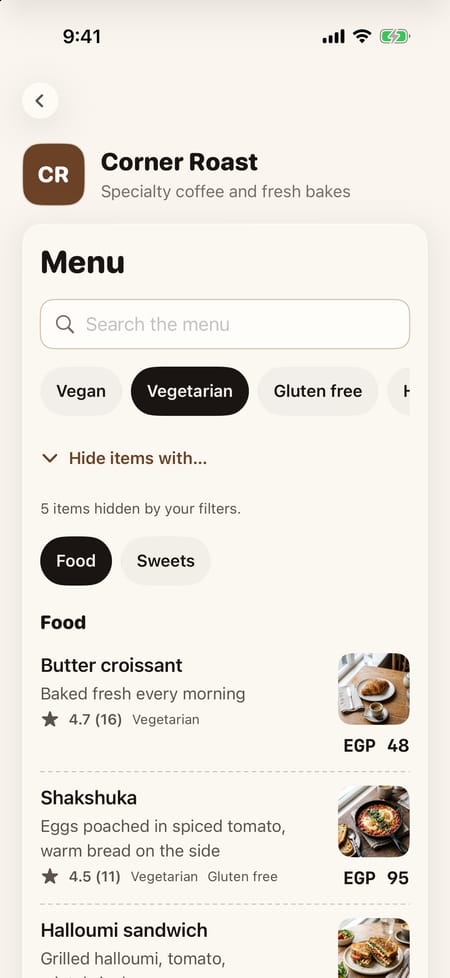
- Sections, dishes and prices. Prices can include piasters, like 45.50. Each dish can have a description, a photo and its calories.
- Diet tags. Vegan, Vegetarian, Gluten free, Halal and Spicy.
- Allergens. Fourteen: celery, gluten, crustaceans, eggs, fish, lupin, milk, molluscs, mustard, tree nuts, peanuts, sesame, soy and sulphites. Each dish lists what it contains.
- Filters and search. “Dietary” keeps only the dishes that fit, and “Hide items with…” removes dishes that contain a chosen allergen. The menu tells the guest how many items their filters hid, so nothing disappears silently.
- Add-ons. Choices such as the type of milk, with their price changes.
- Ratings. Each dish shows its average star rating, the number of ratings and recent comments.
How you build it
- Add dishes by hand. In the menu editor for each site, add sections and items with a price, photo (JPEG, PNG or WebP, up to 2 MB), diet tags, allergens and add-on groups.
- Or import a menu. Choose “Import a menu”, then paste your menu as text or upload a photo of the printed one. Dingly reads it with AI and shows a preview of sections, items, prices and the diet and allergen tags it found. Fix or remove anything wrong, then pick “Append to what's there” or “Replace the whole menu”.
- Check, then publish. Imported items arrive as drafts that guests don't see. Check prices and allergens, then publish each item or use “Publish all”.
- Or import from Foodics. Connect Foodics and pick the branch, and Dingly brings that branch's products, options, sections and tables into your Dingly menu in one step. See Dingly for Foodics.
- Schedule menus if you need to. A site can have more than one menu, such as breakfast and dinner, each shown on the days and hours you set. The main menu is always on.
Dish ratings and their safeguards
Guests rate a dish from 1 to 5 stars, with an optional comment. Ratings are anonymous: no name and no account. Each phone keeps one rating per dish, and rating again replaces it.
Because comments are public, four safeguards are always on:
- A word filter. Before a comment shows, it is checked for insults in English, Arabic and Franco-Arabic. Comments with a link or a phone number are held too. A held comment stays hidden, and the guest is told it will show once the shop approves it.
- Report. Any guest can report a comment as offensive, spam or something else. It is hidden right away until you decide.
- Block this guest. A guest can hide every review from another guest on their own phone, and undo it with “Show blocked guests again”.
- Your moderation. “Dish reviews” in the web menu editor, and Shop › Dish reviews in the Dingly app, list every comment as Public, Reported, Filtered or Removed. You choose Show or Remove.
More on handling comments in moderating dish reviews.
What you and your staff control
- One menu per site. Each branch has its own sections, prices and photos, so a branch with a smaller kitchen shows only what it serves. See managing several branches.
- On or off. Switch the whole menu on or off per site, and hide or publish single dishes. Owners and managers edit the menu; the printed tag stays the same.
- Sold out during service. With table ordering on, the desk has a “Menu today” panel. Anyone on the team can switch a dish to Sold out, and guests see it marked and can't order it until it is switched back.
- Ordering from the menu. Without table ordering the menu is for reading, and the cashier rings up the order. With table ordering on, guests order from this menu, with add-ons and a note, and staff accept first. Guests pay the staff or at the till.
Strengths and honest limits
What it does well. Guests with allergies or a diet see what fits without asking. A price change goes live without a reprint. One menu serves the browser, the App Clip and the Dingly app, on a guest page that works in English and Arabic. Ratings show guests what others liked, with safeguards that keep comments civil.
Where it falls short.
- Tags are only as right as what you enter. Dingly does not check recipes. An AI import can misread a photo, which is why imported items wait as drafts until you check the allergens.
- Dish names are not translated. Guests see the names and descriptions exactly as you write them. Write them in the language your guests read, or in both.
- The Foodics import is not live. Re-run it after you change the menu in Foodics. When Foodics adds tax at the till, imported prices come in before tax, so say so on the menu.
- Guests need a phone. Keep a printed menu at the counter for guests without one.
Related guides
- The guest page: everything else the tag opens while guests wait.
- Table ordering: guests order from this menu at the table.
- Importing a menu from a photo: what to check before you publish.
- Dingly for Foodics: order alerts, menu and tables from your Foodics account.
Questions
Do guests need an app to see the menu?
No. The counter or table tag opens the menu in any browser. On iPhone it can open in the App Clip, which needs no install either.
Can I import the menu I already have?
Yes. Paste it as text or upload a photo of the printed menu, check the preview, and the items arrive as drafts for you to publish. On Foodics, you can import the branch's products, options and sections instead.
What stops abusive dish comments?
A word filter holds insults, links and phone numbers before they show. Any guest can report a comment, which hides it at once, or block another guest's reviews on their own phone. You show or remove comments under Dish reviews.
Can I have a breakfast menu and a dinner menu?
Yes. Add more than one menu to a site and set the days and hours each one shows. The main menu shows whenever no scheduled menu applies.
Can guests order from the menu?
Only when you switch on table ordering for that site. Otherwise the menu is for reading and the cashier takes the order as usual.
Put your menu on the tag. Set up your shop, or write to hello@dingly.win in English or Arabic.