The guest page: what guests can do while they wait
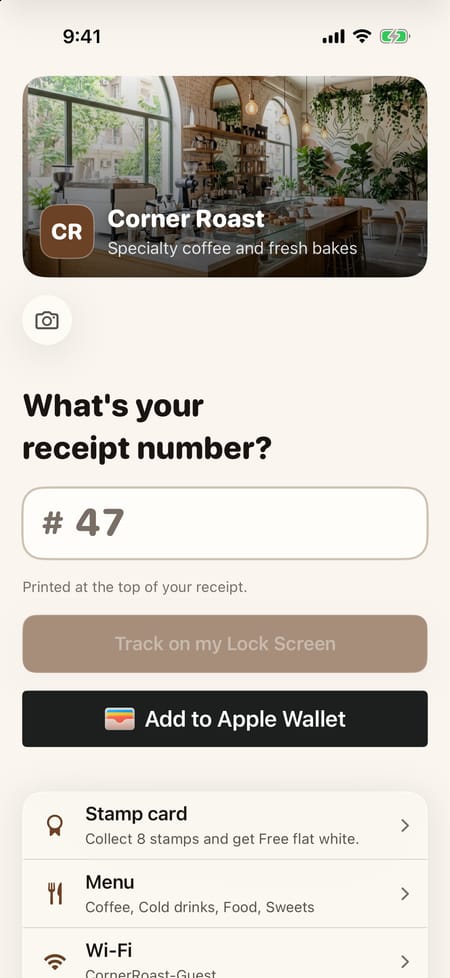
In a café, customer engagement happens mostly in the minutes between paying and picking up. With Dingly, the tag a guest taps to follow their order also opens your shop's own guest page: the menu, Wi‑Fi, a way to tell you how it was, a puzzle, your links and your stamp card. Guests open it in any browser, or as an App Clip on iPhone, with nothing to install.
In short: every venue gets one guest page, in your colours, with your logo and cover photo, in English or Arabic. You switch each part on or off per site, and the printed tag never changes. Guests need no account. They share contact details only when they choose to: for the stamp card, the Wi‑Fi, or to ask you to get back to them.
- What the wait looks like today
- What guests can do on the page
- What you control
- Strengths and honest limits
- Related guides
- Questions
What the wait looks like today
A guest who has paid and is waiting usually has three questions: is my order coming, what's the Wi‑Fi password, and what else is good here. Each one ends at the cashier, who is also taking the next order. A guest who had a bad visit often says nothing at the counter, and you never hear about the cold coffee or the long wait.
A guest page answers those questions on the guest's own phone, and gives them a private way to talk to you.
What guests can do on the page
- Open it. The guest taps the NFC tag or scans the QR code at the counter or on the table. The page opens with your name, cover photo and colours. See QR codes and NFC tags.
- Follow the order. They type the receipt number and the page tells them when it's ready. That part is the restaurant pager.
- Use the rest of the page. Below the order sit the rows you switched on: stamp card, Google review, menu, Wi‑Fi, feedback, puzzle and your own links.
Menu
Prices (piasters too), photos, allergen and diet tags. Guests filter for what they can eat and rate the dishes they tried. The details are in the digital menu guide.
Wi‑Fi without asking the cashier
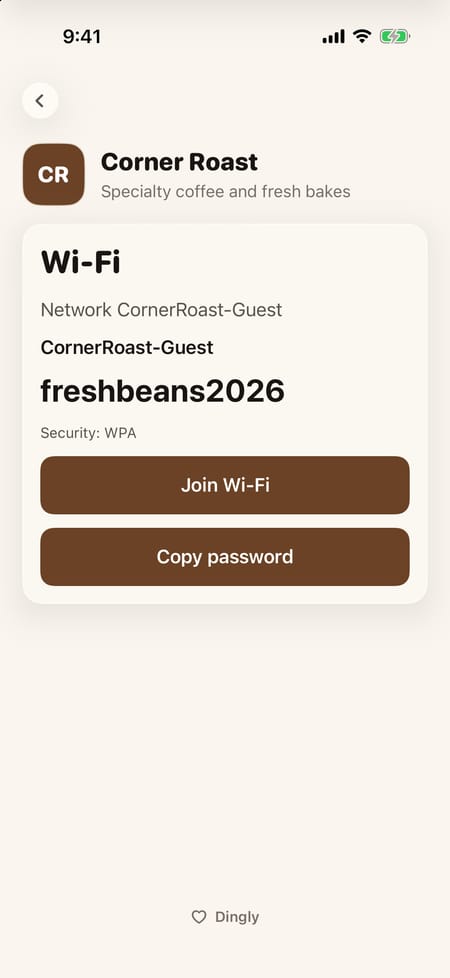
The Wi‑Fi card shows the network and password, with a button to copy it and a Wi‑Fi QR code (“Scan to join”) for phones that read one. In the iPhone App Clip, a “Join Wi‑Fi” button joins the network for the guest. If you prefer, ask for an email or phone number before the password shows. The guest ticks a box to share it with your shop, and joining the Wi‑Fi never signs them up for offers. More in guest Wi‑Fi marketing.
Feedback that reaches you privately
“Tell us how it was” lets a guest rate the visit from 1 to 5 and write a note, without giving a name. It lands in the feedback inbox of that site, sorted into positive, negative and neutral, for you to read. If you turn on “Ask unhappy guests how to make it right”, a guest who gives 3 stars or fewer can leave a name and phone or email and ask you to get in touch. Owners and managers can get a phone alert for these, which never shows the comment or the contact details, because lock screens are public.
Separately, if you add your Google review link, the page shows a “Leave a Google review” row for every guest who opens it. See collecting guest feedback.
Something to do while they wait
A quick Sudoku on the order page, with the order pinned above it, plus your own links and social accounts.
Your shop on their Home Screen
Once a guest has used your page, it offers to add it to their Home Screen, with your logo and your name. On Android the browser's own install dialog opens; on iPhone the page shows the steps in pictures. Next time, one tap opens your page, even on weak Wi‑Fi.
Fill in with Google, and the stamp card
On the stamp card, offers and Wi‑Fi forms, “Fill in with Google” fills the name, email and birthday in one tap. No account is created, nothing is saved until the guest taps the form's button, and Google's access is revoked right after. The stamp card itself lives in Apple Wallet or Google Wallet and fills up when orders are marked ready.
What you control
- The look. Under “Card look”: cover image, background colour, logo, tagline and custom links. The printed QR and NFC tag stay the same when you change them.
- The parts. Switch the menu, Wi‑Fi, feedback, stamp card and the rest on or off per site, and turn on “Puzzle while you wait” if you want it.
- The language. “Guest page language” sets English or Arabic for each site, with a full right-to-left layout in Arabic.
- Each branch. Every site has its own page, tags, menu, Wi‑Fi and feedback inbox.
- What you learn. Insights shows Wi‑Fi leads, email sign-ups, ratings and stamp card use, for one site or all of them. Owners and managers can read the feedback inbox from the Dingly app.
Strengths and honest limits
What it does well. One tag answers the questions guests usually bring to the cashier. Guests install nothing and give nothing unless they choose to. Unhappy guests have a private way to reach you, and the guest list you build feeds your stamp card and marketing emails.
Where it falls short.
- It needs a phone and a connection. Guests without either still need the cashier.
- Feedback is anonymous by default. You can only reply to guests who left a way to reach them.
- Asking for an email before the Wi‑Fi adds a step. Some guests will skip the Wi‑Fi rather than share it.
- The page is only as useful as what you fill in. An empty menu or a stale Wi‑Fi password shows straight away.
Related guides
- The digital menu: diet filters, allergens and dish ratings.
- Stamp cards in Apple Wallet and Google Wallet.
- Marketing automation: welcome, birthday and win-back emails.
- Order-ready notifications on every phone.
Questions
Do guests need to install anything?
No. The tag opens the page in any browser. On iPhone it can open as an App Clip, which needs no install either.
Can I ask for an email before showing the Wi‑Fi password?
Yes. Guests then share an email or phone number and tick a box to share it with your shop. Joining the Wi‑Fi never signs them up for offers; that takes a separate opt-in.
Is guest feedback public?
No. Ratings and notes from “Tell us how it was” go to your private feedback inbox. A Google review is separate: guests leave it on Google from the “Leave a Google review” row.
Can I change the colours without reprinting the tags?
Yes. The cover, colour, logo, tagline and links can change at any time. The printed QR code and NFC tag stay the same.
Does each branch get its own page?
Yes. Each site has its own page, tags, menu, Wi‑Fi and feedback inbox, in the language you pick for it.
See your own guest page. Set up your shop, or write to hello@dingly.win in English or Arabic.