“Ready” finds the guest, wherever their phone is.
Guests don't download anything. The tag opens an App Clip on iPhone and a web page on every other phone, and each one hears about it the moment you tap Done.
Tap the tag, nothing to install
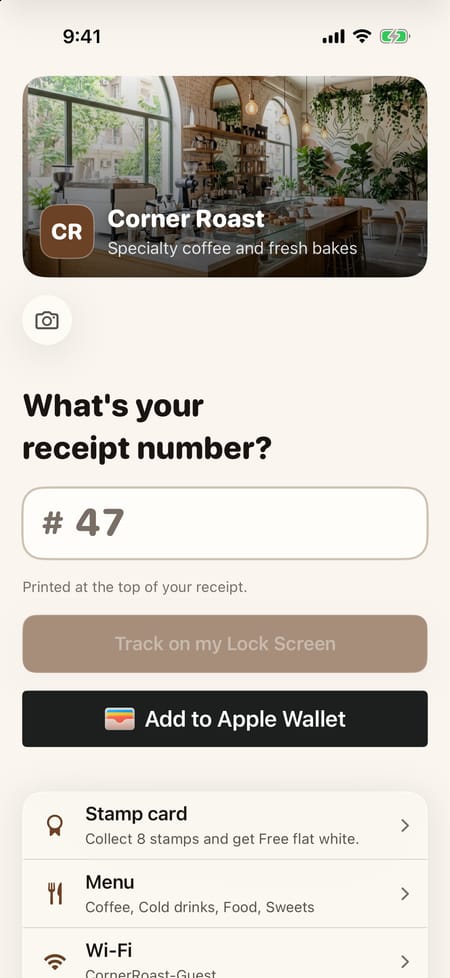
On iPhone the tag opens the Dingly App Clip, a small native version of your shop page. On Android and everywhere else, the same page opens in the browser.
On the Lock Screen until pickup
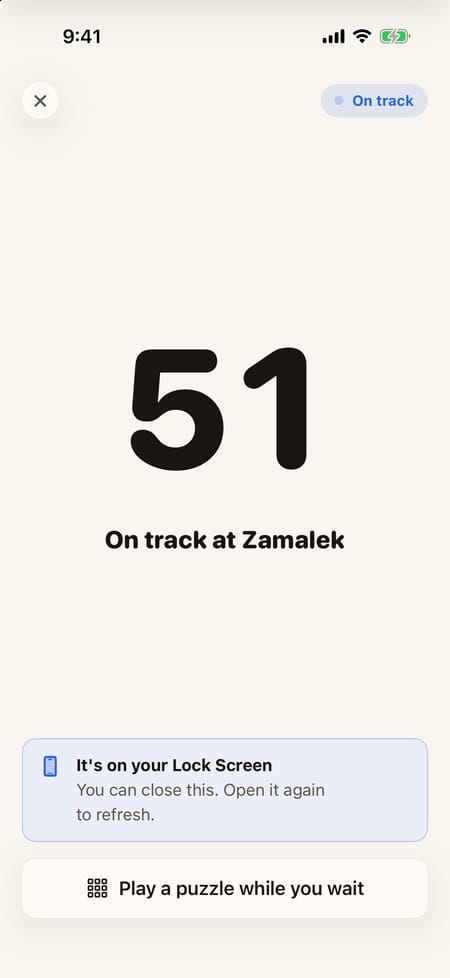
From the App Clip, the order sits on the Lock Screen and in the Dynamic Island. Only the ready update makes a sound, so nobody is buzzed while they wait.
A push, in their language
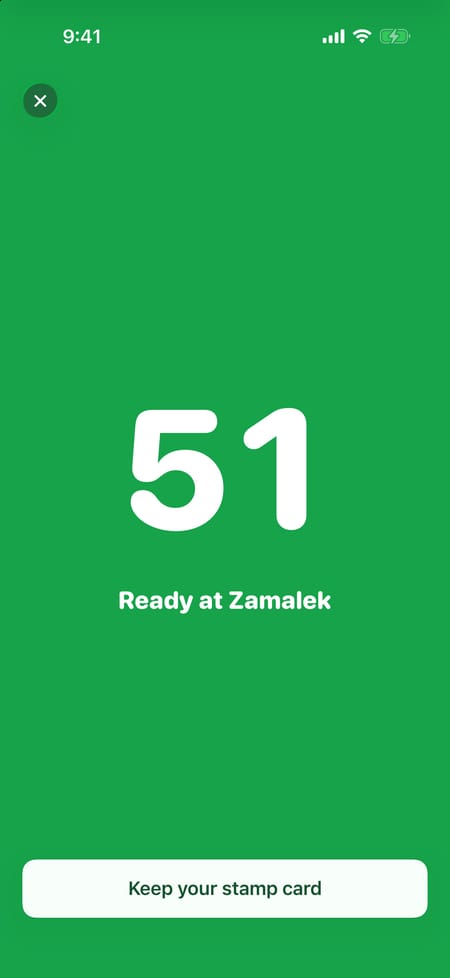
On iPhone, the App Clip sends a real push when the order is ready, once the guest allows notifications. Guests with the Dingly app tap “Notify me when it's ready”. Either way the alert arrives with the screen locked, in the language they use, and tapping it opens the order.
- The page still turns green. Every guest page flips to green with “47 is ready”, in any browser. Browsers that allow notifications get one too.
- Your shop, not a generic app. The clip shows your name, cover photo and stamp card. One clip serves every Dingly shop, because the tag picks the shop.
- No name needed. Guests follow an order with nothing but the number on their receipt.
- One alert, then gone. The phone's push token is kept only until the ready alert is delivered, then deleted.
- Table orders say more. A table order also alerts the guest when staff accept it, so they know it's being made. See Tables.
- The guest's choice. A push only comes when the guest allows notifications. Without them, the open screen still updates and buzzes when the order is ready.
Guests order from the table. Your staff say yes first.
Put a tag on each table. Guests open your menu with the table already known, send their order and follow it on their phone. Nothing goes to the kitchen until staff accept it.
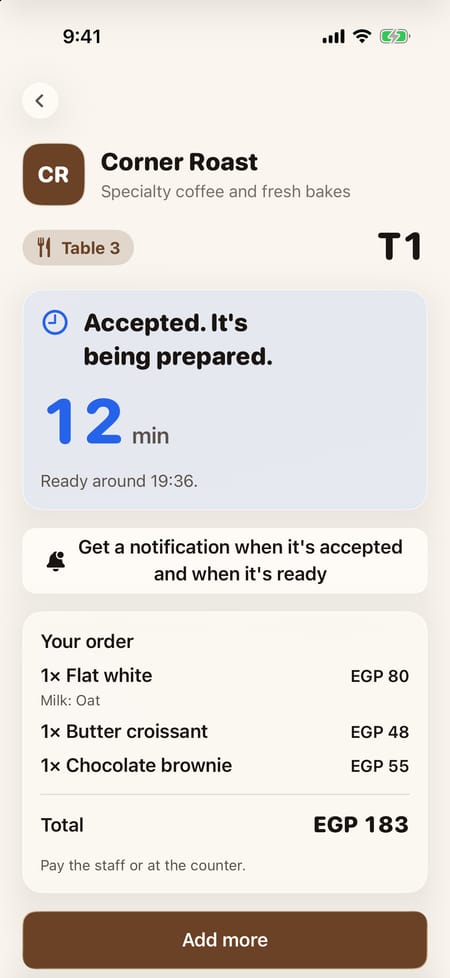
- A tag on every table. Add your tables, then print table cards or write NFC tags. Guests see “Table 7”, or the name you gave it, like “Terrace 2”.
- Your menu, with options and notes. Guests choose add-ons and quantities, add a note for the kitchen, and send. Nothing is charged: they pay the staff or at the till, as they do today.
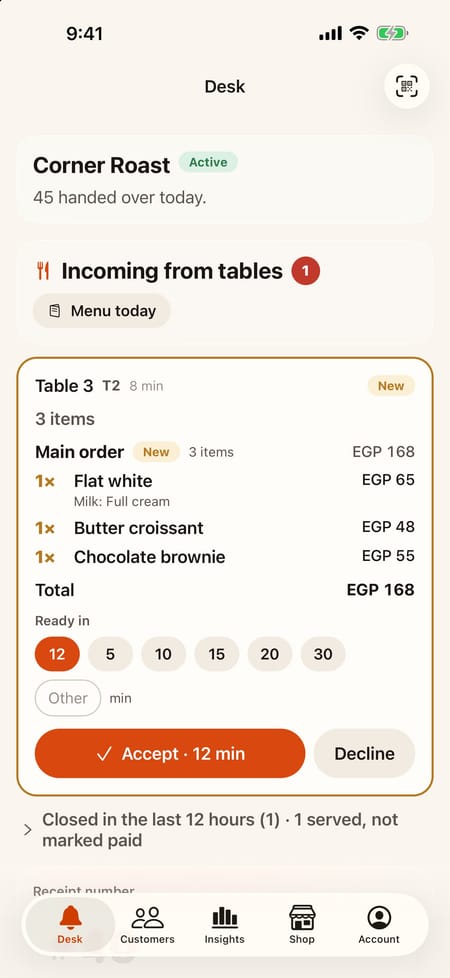
- Staff accept first. New orders land in “Incoming from tables” on the desk, with a sound. Accepting sets a “Ready around” time from the site's preparation time, or one staff pick. A declined order can carry a reason for the guest.
- No change slips past you. Guests can change or cancel until staff accept. After that they can only ask for extra items, which staff approve or decline. The desk shows every change the guest made, line by line.
- Alerts that list the dishes. Anyone on the team, cashiers too, can turn on alerts for table orders and calls in the Dingly app. Each one names the table and the dishes, never the guest's note.
- A countdown on the Lock Screen. In the App Clip on iPhone, an accepted table order counts down on the Lock Screen to its ready time.
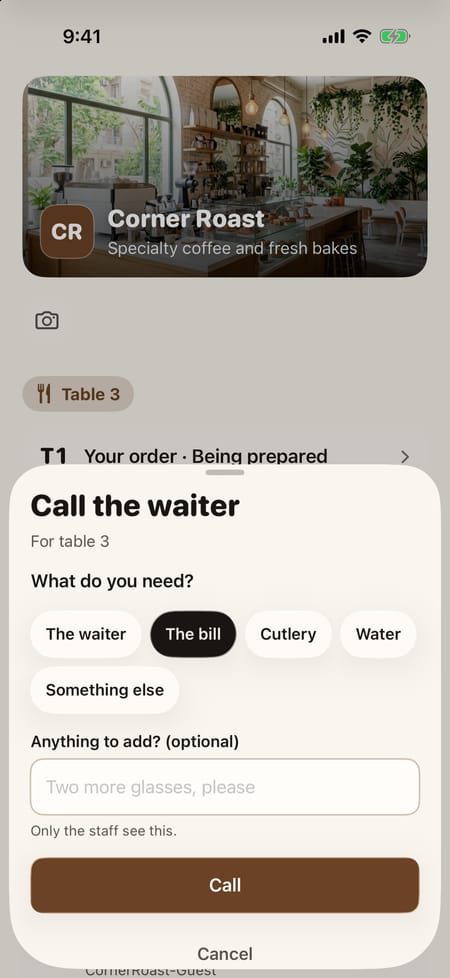
- Call the waiter. Guests ask for the waiter, the bill, cutlery, water or something else. Staff tap “On my way”, and the guest sees it.
- No pager numbers used. Table orders are numbered T1, T2… for each site, and never take a pager slot.
- Straight into Odoo. On Odoo registers with the restaurant module, the register rings and an accepted order lands on its table in Point of Sale. See POS integrations.
- Off until you switch it on. “Order from the table” and “Call the waiter” are separate switches for each site.
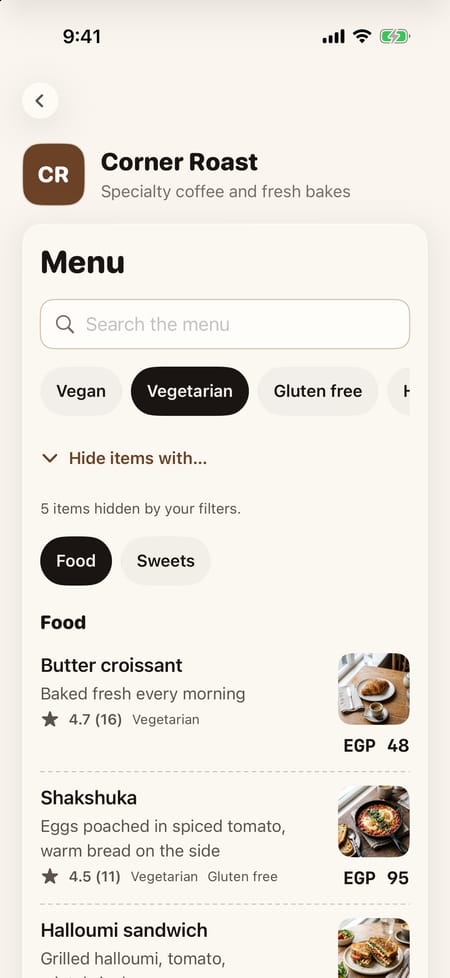
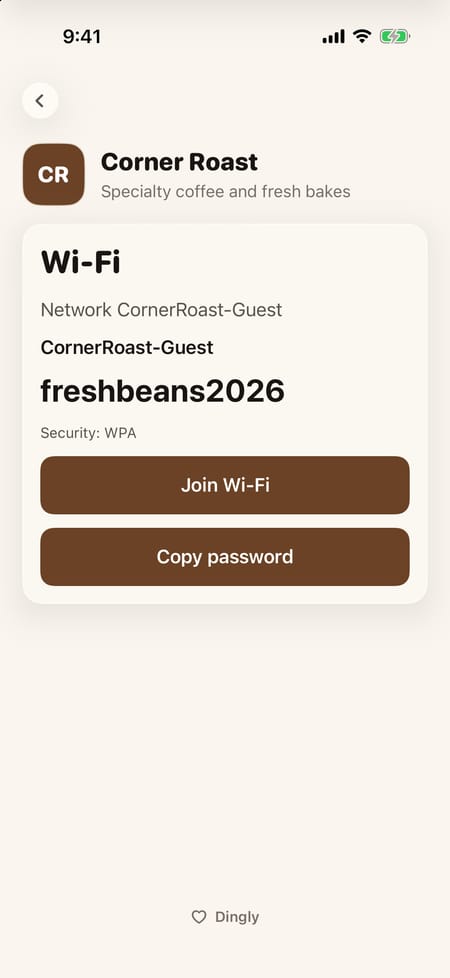
While they wait, the tag opens your whole shop.
One page per venue, in your colors. Guests open it in the browser, or as an App Clip on iPhone.
Your menu, with diet filters
Prices (piasters too), photos, allergen and diet tags. Guests filter for what they can eat and rate the dishes they tried.
Wi-Fi without asking the cashier
Guests copy the password or scan a Wi‑Fi QR code. Or ask for an email or phone number before showing the password.
Feedback that reaches you
Guests rate their visit and can leave a note or ask you to get in touch. It lands in your private inbox, and your page links to your Google reviews for everyone.
Something to do while they wait
A small puzzle to play, plus your links and social accounts.
Your shop on their Home Screen
Once a guest has used your page, it offers to add it to their Home Screen, with your logo and your name. iPhone guests get the steps in pictures. It opens even on weak Wi‑Fi.
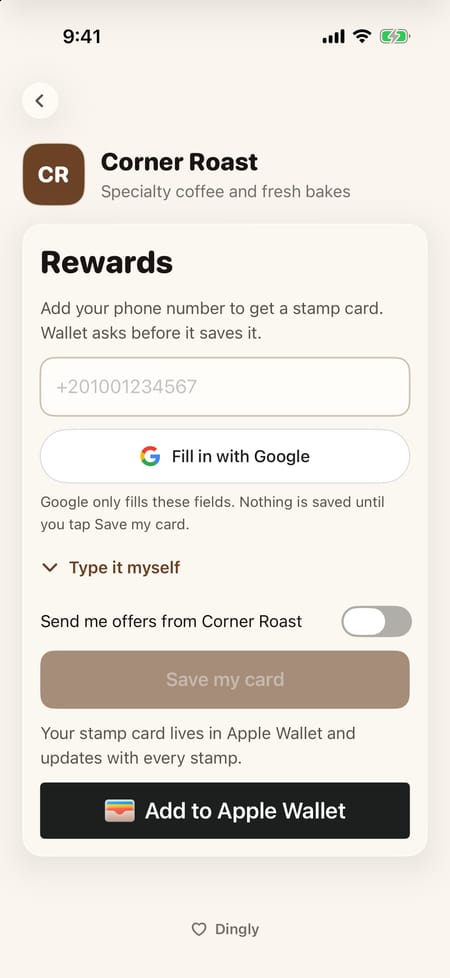
Fill in with Google
On the stamp card, offers and Wi‑Fi forms, one tap fills the name, email and birthday. No account, and nothing is saved until the guest taps the form's button.
Dish reviews with safeguards. Comments pass a word filter before they go public. Any guest can report a comment, which hides it at once, or block another guest's reviews on their own phone. You moderate them in the menu editor.
A stamp card nobody can lose.
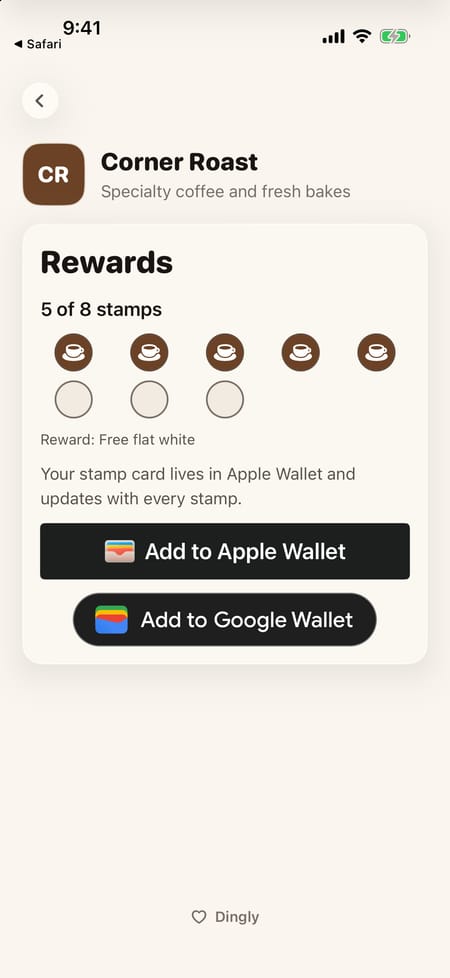
The guest's phone number is the card. It lives in Apple Wallet or Google Wallet and fills up by itself.
- A stamp with every order. It lands when the cashier taps Done. Forgot to save the number? A phone saved up to 30 minutes later still counts.
- Scan to stamp or redeem. In the app, the cashier scans the QR on the guest's card, or types a 6-character reward code, to add a stamp or hand over a reward.
- One card for all your branches. The same number fills the same card at every site you run.
- Your goal, your reward. Pick how many stamps it takes, what the reward is, and whether it expires. Preview the wallet card before guests see it.
- The card updates itself. New stamps and earned rewards show up in the wallet, and Apple Wallet shows an alert when a reward is ready.
- Mistakes are easy to fix. Cashiers can add or undo a stamp, and every change stays in the guest's history.
- A wallet card per site, if you want it. The Apple Wallet and Google Wallet card is a switch on each site.
- Birthdays without typing. A guest who fills the card in with Google brings their birthday along, so your birthday email can find them.